How to Get AI Summaries of Long Content Read Aloud
Readox Pro can summarize a page, selection, or typed text first, then read that summary aloud, so you can get the gist quickly and save the shorter version if that is all you need.
A 20-minute article is not always something you want to hear from beginning to end.
Neither is a 15-page PDF when all you need is the main point, the recommendation, or the takeaway.
That is where Readox Summarize is useful. It can summarize a page, a selection, or typed text, then read that summary aloud in the same player. That means you can get the gist quickly, move faster through a pile of reading, and only switch to the full version when it is worth the extra time.
How it works
In Readox, Summarize is a mode.
Turn it on, then use the product the same way you normally would. If you press play on a page, Readox summarizes the page first and reads that summary aloud. If you have text selected, it summarizes the selection first. If you are working with custom text in the sidepanel, it can summarize that too before reading it back.
If the summary is enough, you are done. If not, turn Summarize off and go right back to the original text.
How to turn it on quickly
There are a few ways to use Summarize without digging through settings every time.
The simplest is the Summarize toggle in the sidepanel. Turn it on, then your normal read actions summarize first instead of reading the full text.
If you use summaries a lot, you can also assign a keyboard shortcut for Toggle summarize. That makes it much easier to switch between the short version and the full read while you browse. The keyboard shortcuts guide covers that setup in more detail.
And if you prefer the right-click path, Readox also supports Summarize selection and Summarize page from the context menu. The right-click menu guide covers that flow.
You can save the summary if that is the useful version
Sometimes the summary is the part you actually want to keep.
In Readox, you can keep it, edit it, and save it to your library as its own item. That matters because not everything needs to stay as a full article or full page. Sometimes the shorter version is the better one for later.
That also fits well with library collections. A collection can hold the full item, but it can also hold the shorter version if that is what you actually want to hear again.
Where this helps most
One obvious use is long articles. You open a page, hear the summary first, and get the main point without committing to the whole read.
It also helps with research. A short spoken summary can give you the key point of a source before you spend more time on it. The same is true for newsletters, internal docs, copied notes, and cleaned-up text from an AI tool. The source can be messy. The summary gives you the cliff-notes version first.
It is also useful for pasted or typed text. If you wrote notes, pasted in research, or pulled together a draft, you can summarize that too and hear the shorter version back.
It also works well with PDFs and OCR
Summarize is a separate feature from PDF handling and OCR.
PDF handling and OCR are what get the text into Readox in the first place. Summarize is what you can do once that text is there.
That pairing can be especially useful on dense material. For example, you might open a long PDF, extract the readable text, then ask for a shorter version that focuses only on findings, recommendations, or key points. The same idea applies to OCR. If you pulled text out of a scan, screenshot, or document photo, a better prompt can help the summary stay focused on the part you actually care about instead of trying to retell everything evenly.
A good way to use this with PDFs or OCR
First get the text into Readox. Then use a more specific prompt.
For example: This is a PDF. Clean up the structure first. Ignore page numbers, repeated headers, citations, and boilerplate. Then give me the main findings and recommendations.
What you can control
Summarize in Readox is not only on or off.
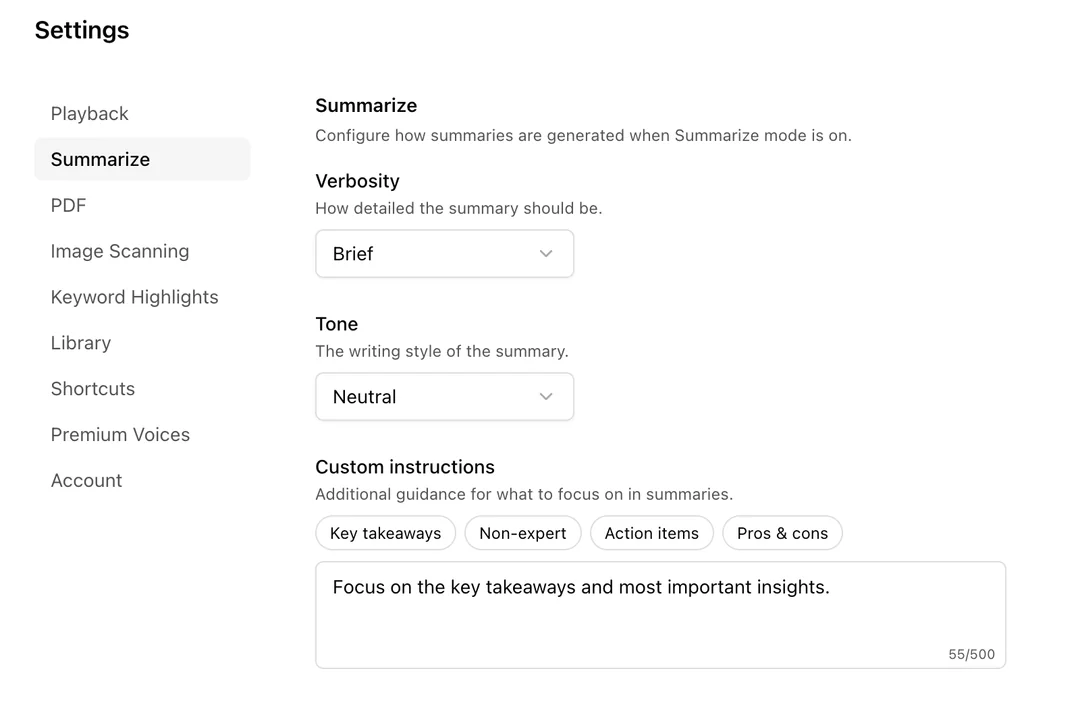
You can choose how detailed the summary should be:
- Brief for the shortest version
- Detailed when you want more of the structure kept
- Key Points when you want something more list-like and direct
You can also choose the tone:
- Neutral
- Casual
- Academic
- Technical
- Simple
And if that still is not enough, you can add your own instruction. For example, you might ask it to focus on action items, explain for a non-expert, pull out trade-offs, or skip background and stay on practical takeaways.
A few prompt ideas that make the feature more useful
Sometimes the easiest way to understand custom instructions is to see what you would actually ask for.
Here are a few examples written the way you could actually use them:
Articles and blog posts
- Focus on the practical takeaways. Skip the long background and tell me what I can actually use, decide, or do after reading this.
- Pull out the main claim, the evidence used to support it, and the final conclusion. If the evidence is weak or mixed, say that clearly.
- I only care about whether this is worth a full read. Give me the gist, what is actually new here, and whether there is anything actionable.
Research, reports, and technical writing
- Explain this for someone who is new to the topic. Define technical terms in plain language and keep the summary easy to follow.
- Turn this into a short study guide with the main idea, supporting points, important terms, and what I should remember later.
- Focus on action items, recommendations, and next steps. Leave out anything that is interesting but not useful.
Studying and review
- Turn this into study notes I could review quickly before a quiz or discussion.
- Summarize this like a teacher explaining the main idea, the important details, and what is most likely to matter later.
- Make this easy to remember. Give me the core idea, three to five key points, and a short recap at the end.
- Pull out the terms, definitions, and examples I should know. Skip anything that feels like filler.
PDFs
- This is a PDF export. Clean up the structure first. Ignore page numbers, repeated headers, footers, citations, and table-of-contents noise. Then give me the main findings in plain English.
- Tell me what changed, what is new, and what matters now. Skip the long history unless it is necessary to understand the point.
OCR and scanned documents
- This looks like OCR from a scanned document. Ignore broken line breaks, repeated boilerplate, and obvious scanning mistakes. Pull out only the parts that matter.
- Organize this around the pros, the cons, and the trade-offs instead of retelling the whole piece in order.
The best prompts do three things:
- tell the summary what to ignore
- tell it what to focus on
- tell it what shape you want back
That is why a better prompt can make a long PDF, a messy OCR result, or a dense article much more useful.
Why this matters for long queues
Summaries are especially useful when your backlog is bigger than your attention span.
That is true for saved pages, but it is also true for pasted or typed text, copied selections, and the kind of mixed-source queue that Readox collections are built for. You do not need every item to get the full ten-minute treatment right away. Sometimes the right move is hearing the short version, saving that short version, and moving on.
This is just a faster way to work through a pile of reading.
What to know about limits
Summarize is a Pro feature with 100 summaries per month, and it is separate from the fully local premium speech and OCR parts of Readox. Premium English and Spanish voices are included free. See the pricing page for current pricing.
That means it has a usage limit, while premium voices and OCR do not work that way. Very long text may also be trimmed before summarizing so the request stays within the supported size.
The main listening engine is still the thing you can keep using all day. Summaries are the faster layer on top.
Why this fits the bigger Readox direction
Readox is most useful when it helps you get through more written material with less friction.
That is exactly where Summarize fits. It gives you a short spoken version of a page, selection, or typed text, then lets you stop there, save that shorter version, or keep going into the full read.
Read aloud web pages and PDFs with free premium English and Spanish voices that run on your device.
Related Reading
More guides that connect to this workflow.
How to Use Keyboard Shortcuts to Read Pages Without Leaving the Keyboard
Readox keyboard shortcuts let you read, pause, stop, summarize, and save pages without reaching for the mouse, which makes the workflow much more useful in practice.
How to Read, Summarize, or Save a Page From the Right-Click Menu
Use Readox's right-click menu to read a page now, summarize it, or send it into your listening queue without breaking your browsing flow.
How to Organize a Listen-Later Queue With Library Collections
Readox collections are playlist-like queues for articles, PDFs, selections, summaries, and saved text, with duration, progress, reordering, resume, and continuous playback.