How to Read Text From Screenshots, Photos, and Scanned Documents
Readox can pull text out of screenshots, photos, and scanned documents on your device, so text does not stop being listenable just because it is trapped in an image.
One of the frustrating things about text-to-speech is how often the useful text is not actually selectable text.
It is a screenshot from Slack. A photo of a textbook page. A scanned contract. A whiteboard capture. A page from a report that made it to you as an image instead of a document. In all of those cases, the words are visible, but they are trapped in pixels.
OCR solves that problem in Readox. Instead of limiting read-aloud to clean webpages and typed text, Readox can pull text out of images and read it aloud locally on your device. Screenshots, photos, and scans can enter the same listening workflow as everything else.
Why this matters in practice
The value here is not image support in the abstract. It is that a lot of real reading material arrives in awkward formats.
You might be dealing with a scanned handout, a screenshot someone dropped in chat, a photo you took during class, or a document that should have been selectable text but was flattened into an image somewhere along the way. Those are all common enough that a read-aloud product feels incomplete without a way to recover the text.
This matters even more in work and study settings, where the source material is often messy before it becomes useful.
What kind of OCR Readox is doing
Readox is not just reading every visible pixel in order.
When the image looks like a structured document, it tries to understand the page as a document first. That means separating paragraphs from titles, captions, tables, formulas, code-like regions, figures, headers, and footers. That extra step matters because straight OCR on a dense document often sounds terrible. The model may technically read the page, but it reads it in a way that feels chaotic.
The goal is to focus on the parts that are likely meant to be read aloud and avoid turning the rest into bad audio.
What this means in practice
If you drop in a screenshot from chat, Readox usually just extracts the visible text and reads it back.
If you drop in a scanned report or textbook page, Readox first tries to treat it like a document. That helps it keep paragraphs together, follow columns in order, and avoid dumping headers, footers, formulas, and other page furniture straight into the audio.
How it behaves on structured documents
Structured documents are where this becomes most useful. Think academic papers, research reports, books, magazines, contracts, exams, and multi-column scans.
On that kind of input, Readox aims to extract the main reading flow instead of treating every element equally. Body text is pulled out in reading order. Tables and formulas are preserved as markers in the transcript rather than being forced into nonsensical speech. Headers, footers, and decorative elements are filtered when possible. Multiple columns are handled as document structure rather than as one long left-to-right mess.
This is the difference between finding some text and getting audio you can actually follow.
How it behaves on everything else
Not every image is a formal document, and that is fine.
For screenshots, photos of signs, UI captures, whiteboard notes, labels, and other less structured images, Readox falls back to direct text extraction without the extra document-layer cleanup. You still get the text. You just do not get the same level of structural filtering you would on a paper, report, or scanned page.
That tradeoff makes sense. Not every image needs to act like a PDF before it becomes useful.
How you get an image into Readox
The input side is intentionally simple. You can drag and drop an image onto the sidepanel, paste a screenshot, or use the file picker from the + button. Supported formats are JPEG, PNG, WebP, and SVG, up to 10 MB.
By default, extracted text starts playing immediately. If you would rather inspect the result first, you can turn off auto-play in Settings.
What happens to non-text elements
One reason OCR goes wrong in read-aloud products is that not everything on a page is meant to be spoken.
Charts, formulas, figures, decorative icons, and code-like regions can all interfere with the listening flow if they are forced into plain speech. Readox handles that more conservatively. Paragraphs, titles, lists, and captions are treated as readable text. Tables, formulas, and algorithm-like regions are marked in the transcript so you know something was there, but they are not always forced into awkward speech. Figures and obviously decorative elements are skipped rather than turned into noise.
That makes the transcript more honest and the audio easier to live with.
Why local OCR matters
Everything here runs locally on your device.
This matters for privacy, but it also changes how the product feels. You do not have to upload screenshots, send documents to a remote OCR service, or think about usage limits just to recover text from an image. The extraction happens in the browser, and the result stays in the same local-first workflow as the rest of the extension.
For screenshots, personal documents, and one-off scans, that is often simpler than sending everything through a cloud OCR pipeline.
Language support
English works out of the box. Readox also supports additional language packs for Latin-script languages, Cyrillic, Korean, Japanese, Chinese, Thai, and Greek. These are quick one-time downloads you can install from Settings. In auto-detect mode, Readox tries the installed languages and picks the best match line by line.
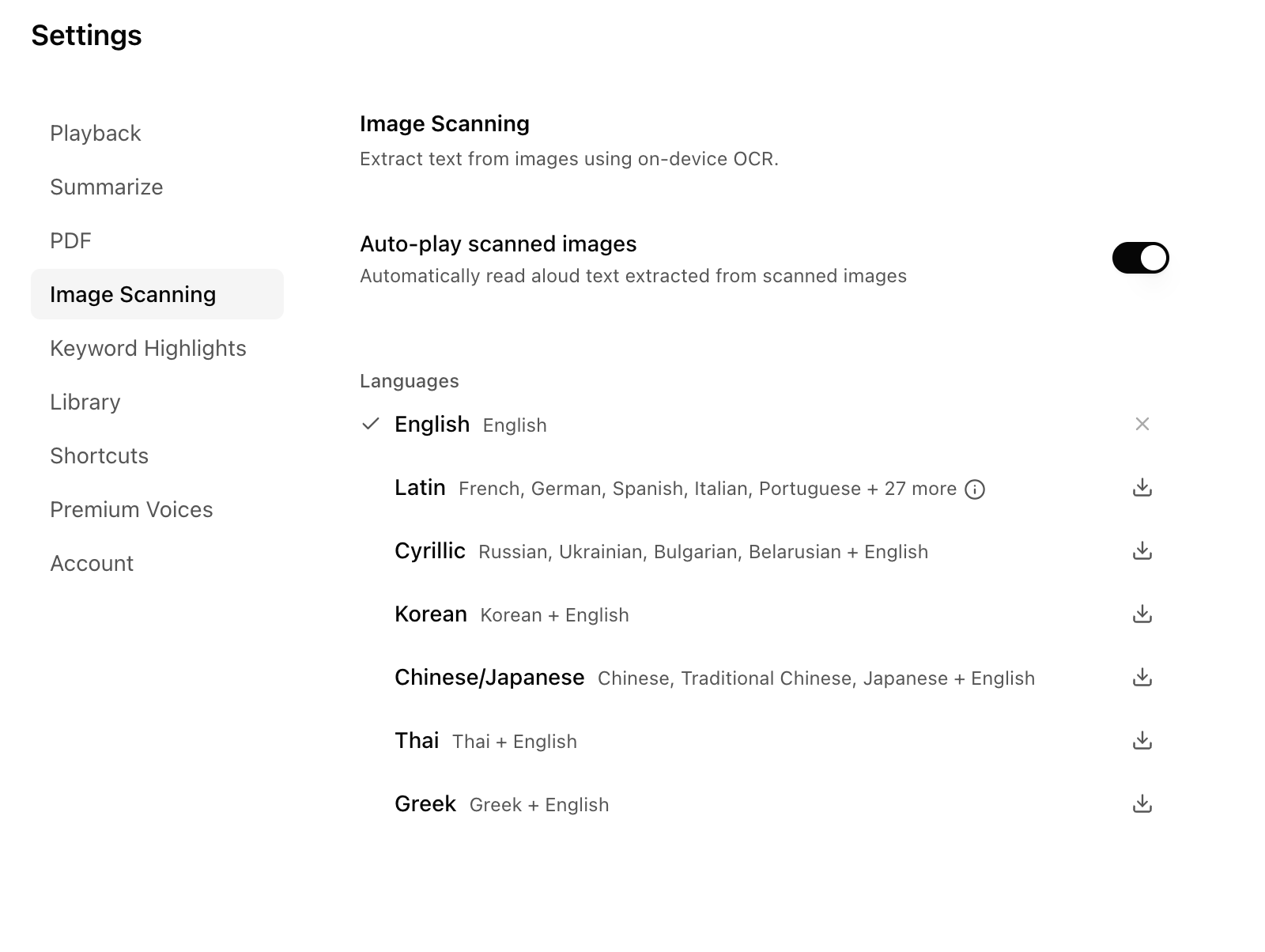
The list is not the main thing. OCR only becomes broadly useful once it can handle more than a narrow English-only workflow.
Why this matters beyond one file type
This is not only about reading clean text. It is about making useful text listenable even when it comes in awkward formats.
That includes webpages, selections, notes, files, pasted text, and images. OCR matters because it closes one of the biggest remaining gaps. Without it, too much useful material gets stranded in screenshots, scans, and photos. With it, those inputs can join the same listening system as everything else, including the same library collections you use for pages, summaries, and saved text.
It also fits cleanly next to plain text and Markdown file support. One path starts with files that already contain text. The other starts with images where the text has to be extracted first.
OCR matters here because text does not stop being useful just because it stopped being selectable.
Read aloud web pages and PDFs with free premium English and Spanish voices that run on your device.
Related Reading
More guides that connect to this workflow.
How to Listen to Markdown and Plain Text Files Without Hearing the Markup
Readox can read both plain text and Markdown files aloud. Plain text plays as-is, while Markdown is cleaned up so you hear the content instead of the syntax.
How to Listen to Your Own Notes, Drafts, and Pasted Text
Readox can read pasted or typed text directly in the sidepanel, which is useful for your own notes, AI-generated notes, GitHub snippets, markdown drafts, copied passages, and other working text.
How to Organize a Listen-Later Queue With Library Collections
Readox collections are playlist-like queues for articles, PDFs, selections, summaries, and saved text, with duration, progress, reordering, resume, and continuous playback.